PDF Reader – Reader & Editor
- 4.0
- Rating
- 5.00M
- Installs
- Free
- Price
 Analysis by App-foxy
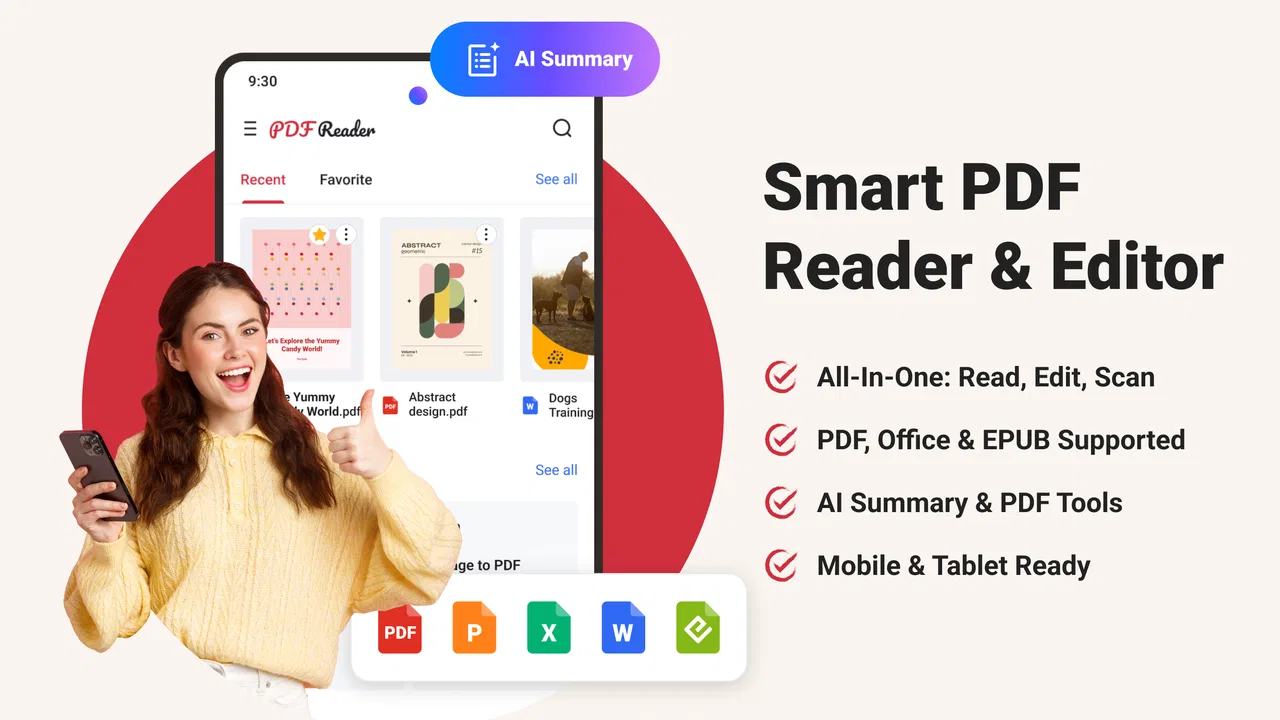
I spent time with PDF Reader – Reader & Editor as an everyday document tool, and my first impression was that it aims to replace several small utilities with one practical workspace. It is made by Ora Tools and sits in the Tools category, with a clear focus on opening, editing, converting, and scanning PDF files. That combination makes sense for people who regularly receive documents on a phone and do not want to move between a reader, scanner, converter, and editor every time a task changes.
The app is free to install and is rated for Everyone, so it is approachable for a broad range of users. Its current version is 4.9.2, and it runs on Android from version 8.1 onward. I would not describe it as a specialist desktop publishing replacement, but I found its all-in-one approach useful for short document jobs: checking a form, preparing a scan, making a quick correction, or turning a file into a more convenient format before sharing it.
How the all-in-one workflow feels in daily use
The strongest idea here is not any single PDF function. It is the ability to stay in one app while the job changes. A document may arrive as an attachment, need a quick read, require a small edit, and then need to be converted or scanned alongside another page. With a collection of separate apps, each handoff can create friction. A combined tool gives that process a more natural flow.
You May Also Like

 Blood Strike: 2.5 Anniversary
Blood Strike’s Loadouts Turn Every Drop Into a Tactical Gamble
A close look at Blood Strike’s custom loadouts: how fast access to signature weapons reshapes its battle royale rhythm, rewards preparation, and narrows the gap between fights.

 Pandora - Music & Podcasts
Pandora’s Music Is Easy to Start, but Harder to Recover
Pandora’s strength is its low-effort path from a seed to a station. Its weak spot is how much confidence it asks you to place in connection, setup, and quiet recovery.

 8 Ball Pool
 Is Built on Rivalries, Rematches, and Routine
A close look at the rivalries, rematches, shared routines, and unanswered safety questions that turn a quick pool match into a persistent mobile community.

 Samsung Music
’s Quiet Strength Is Playing What You Already Own
Its reach comes less from spectacle than from dependable access to a personal library. That simplicity is both the app’s strongest retention engine and its ceiling.

 AccuWeather: Weather Radar
AccuWeather Review: A Quick, Clear Forecast for Everyday Decisions
For everyday plans, the best forecast is the one you can understand quickly. AccuWeather makes rain timing, radar, and local conditions easy to act on, with a few trade-offs.

 Hill Climb Racing
Why Hill Climb Racing Still Turns Crashes Into One More Run
A tiny car, a bumpy hill and one more upgrade: Hill Climb Racing keeps resurfacing because its simple chaos makes every near-miss feel personal.
More From Our News Desk



A realistic example is a rental or school form received while I am away from a computer. I can open the PDF to check the wording, make the necessary adjustment, scan a supporting page, and prepare the resulting document for the next step without treating each part as a completely separate project. That does not make a phone as comfortable as a large monitor, but it does make an urgent task more manageable.
Reading is the foundation of the experience. For simple documents, I prefer having a focused reader rather than opening a full office suite that brings along menus and features I do not need. The app’s purpose is immediately understandable: documents are the center of the experience, not an afterthought inside a general file manager.
The editing side is more useful for corrections and practical preparation than for elaborate design work. I would use it to adjust a document that needs a small change or to get a file ready for sending. If your work involves building complex layouts, managing long publications, or making precise visual changes across many pages, a desktop PDF editor will still be the better environment. Phone editing is naturally more dependent on screen size and touch accuracy.
Scanning is another reason to keep this app installed. A dedicated scanner can be preferable when you need advanced image controls or regular batch work, but having scanning beside reading and editing is convenient for occasional paperwork. I especially like the idea of using the same document workspace for a digital PDF and a page captured from the real world, rather than creating a scan in one app and then searching for another tool to finish it.
Conversion can also solve a common annoyance: a file may be easy to read in one format but awkward to reuse elsewhere. Having conversion available within the same document workflow reduces the need to export, locate another app, and import the result again. The practical benefit is less about converting files for its own sake and more about keeping a short task from becoming a chain of unrelated steps.
What the free access means in practice
The app itself is free, which makes it easy to try without committing money before you understand whether its workflow suits you. That matters for occasional users who may only need PDF help a few times a month. I would start with the free experience and judge it against the exact tasks I expect to perform, rather than assuming every tool is available without limits.
There are in-app purchases ranging from $3.99 to $89.99 per item. That is a wide span, so the value question depends heavily on which purchase appears for the feature or usage pattern you need. The free installation is a genuine advantage, but it should not be confused with every advanced capability being free. Anyone considering a paid upgrade should inspect the specific option shown in the app and decide whether it solves a repeated problem.
I see three different value cases. For an occasional reader, free access may be enough and the main benefit is convenience. For someone who scans, converts, or edits documents often, paid access may be worthwhile if it removes recurring restrictions and saves time. For a professional who needs predictable document production, the higher end of the purchase range deserves more careful comparison with established PDF software before paying.
The important trade-off is that “all in one” can be valuable even when each individual function is not the most advanced available. If I only read PDFs, a basic reader may be simpler. If I scan receipts every day, a dedicated scanning app may offer a more focused routine. This app earns its place when I need several document functions together and want to avoid maintaining a collection of separate tools.
Small workflow decisions that make a difference
One useful habit is to decide whether a document needs editing before starting a conversion or scan. I found that treating the file as a complete workflow, rather than jumping straight into the first available button, helps avoid unnecessary copies and confusing filenames. A quick check of the source document can tell me whether I should preserve the original untouched and work on a separate version.
I also recommend keeping the original scan separate from the cleaned-up or converted result. This is not a glamorous feature, but it is an important document habit. If a conversion produces an inconvenient result or an edit needs to be reversed, the untouched source remains available. On a phone, where file organization can become messy quickly, that simple separation prevents avoidable frustration.
For forms, I would read the whole document before editing a field or adding information. Small screens encourage jumping directly to the first visible area, but later pages may contain instructions or supporting sections that change what needs to be entered. The app makes document handling more convenient; it does not remove the need to check the final file carefully before sharing it.
Scanning also benefits from a deliberate approach. I would capture pages on a flat, well-lit surface and review each page before combining it with other material. A phone scanner is excellent for a quick copy, but a poor capture can become harder to fix after conversion. The advantage of having scanning inside the same app is speed, not immunity from blurry text, shadows, or crooked pages.
Another practical point is to use the reader as a review stage after editing or conversion. A file can look fine while being edited and still contain a misplaced line, an incomplete page, or an awkward break when viewed as a finished PDF. Opening the final result again is a small step that catches errors before a recipient does.
Where it competes well with familiar alternatives
Compared with using a general file manager, this app is more purpose-built for document work. A file manager may help locate a PDF, but it is not necessarily the best place to read, scan, edit, and convert it. The benefit here is a more direct path from finding the document to doing something useful with it.
Compared with a full office suite, the narrower PDF focus can feel less distracting. Office apps are better when I am creating spreadsheets, presentations, or long text documents from scratch. For a PDF-centered task, however, opening a large productivity suite can feel like using a toolbox when I only need one drawer.
Compared with a dedicated PDF editor, the attraction is breadth and convenience rather than maximum depth. A specialist editor may be preferable for detailed annotations, complex page management, or repeated professional work. I would choose this app when I value having reading, scanning, editing, and conversion close together, especially on a phone. I would choose the specialist when precision and advanced control matter more than a compact workflow.
Compared with a dedicated scanner, the same distinction applies. A scanner-focused app may be the stronger choice for frequent multi-page capture and careful image processing. PDF Reader – Reader & Editor makes more sense when scanning is one part of a broader document routine. That difference is important because “more functions” does not automatically mean “better at every function.”
Friction points I would consider before relying on it
The phone format is the first limitation. Reading a long document can be tiring, and editing small areas with touch controls is less comfortable than using a keyboard and a large display. I would happily use it for short documents and urgent changes, but I would not choose a mobile workflow for a long contract review or a detailed publication project unless convenience outweighed comfort.
The second limitation is the uncertainty around paid value for different users. The app is free to begin with, but the in-app purchase range is broad. That means a person should not decide based only on the free label or the most expensive possible option. I would check which capability I actually need, whether the free workflow already covers it, and whether the purchase is sensible compared with a tool I already use.
Another trade-off is concentration. Combining reading, editing, conversion, and scanning is convenient, but a larger feature set can also make an app feel busier than a minimal reader. If I want nothing beyond opening PDFs, the extra functions may be unnecessary. People who prefer a very lean interface may be happier with a basic reader that does one job and stays out of the way.
I would also be cautious about making it the only place for important documents until I understand my own file routine. Keeping originals backed up elsewhere is sensible for tax forms, applications, identification paperwork, and anything that would be difficult to recreate. The app can be a useful working space, but good document management still includes a separate copy of files that matter.
Who will get the most from it
This is a good fit for students, renters, freelancers, families, and small-business users who handle PDFs irregularly but need more than simple reading. A student might review course material, scan a signed page, and convert a document for submission. A freelancer might edit a client form while traveling. A family member might keep paperwork moving without waiting to reach a computer.
It is also suited to people who dislike installing a separate app for every document task. The combined workflow has real value when convenience is the priority and the work is varied. I would recommend trying the free version first, then considering a purchase only after identifying a repeated task that the paid option improves.
The app is less compelling for someone who reads PDFs only once in a while and already has a comfortable reader. It is also not my first choice for a document-heavy professional who needs advanced desktop-level control, detailed collaboration, or a highly specialized scanning process. In those cases, a dedicated alternative may justify its narrower focus.
Its broad Everyone age rating makes it approachable for general household use, but that does not mean every document task is equally suitable for every user. A child reading a worksheet has different needs from an accountant preparing records. The app’s accessibility helps with reach; the right choice still depends on the complexity and sensitivity of the work.
My buy-or-skip recommendation
With an average rating of 4.4 from around 13 thousand ratings and more than a million installs, the app has clearly attracted substantial interest. Those figures do not decide whether it is right for me, but they do make it a reasonable candidate to test rather than an obscure tool I would install without expectations.
My recommendation is to install it if you want a free starting point for mixed PDF tasks on Android and value having a reader, editor, converter, and scanner in one place. I would pay only when the specific purchase matches a task I perform often enough to justify it. The free entry point lowers the risk, while the broad in-app purchase range makes a little personal checking worthwhile.
I would skip it if I need a pure, distraction-free reader, if I regularly produce complex documents, or if a dedicated scanner or professional PDF editor already handles everything better for me. In those situations, the all-in-one design may add options without adding real value.
Overall, I see PDF Reader – Reader & Editor as a practical middle ground: more capable than a basic reader, less specialized than a professional desktop suite, and most useful when a document task changes halfway through. Its best quality is the reduced friction between reading, scanning, editing, and converting. Its main caution is equally clear: free access makes it easy to try, but paid value should be judged by the exact feature and the frequency of your own work.
FAQs for PDF Reader – Reader & Editor
01What features does PDF Reader – Reader & Editor offer?
PDF Reader – Reader & Editor offers a comprehensive suite of features including viewing, annotating, and editing PDFs. You can highlight text, add comments, and insert signatures. It also supports cloud integration, allowing you to access your documents from anywhere. With its intuitive interface, managing your PDFs becomes a seamless experience.
02Is PDF Reader – Reader & Editor compatible with all devices?
Yes, PDF Reader – Reader & Editor is designed to work on both Android and iOS devices. It ensures a consistent user experience across different operating systems, making it easy to switch between your smartphone and tablet. The app is optimized for various screen sizes, enhancing the readability and usability of your documents.
03Does PDF Reader – Reader & Editor require an internet connection?
While PDF Reader – Reader & Editor offers cloud integration for syncing documents, an internet connection is not required for basic functionalities. You can view, annotate, and edit PDFs offline. However, to access cloud storage features or download updates, an internet connection will be necessary.
04Is there a cost associated with using PDF Reader – Reader & Editor?
PDF Reader – Reader & Editor offers a free version with a range of essential features. For advanced functionalities such as premium editing tools and cloud storage options, a subscription may be required. This allows users to choose a plan that best fits their needs and budget.
05How user-friendly is PDF Reader – Reader & Editor for beginners?
PDF Reader – Reader & Editor is designed with a user-friendly interface, making it accessible for beginners. The app provides a step-by-step guide upon installation, helping new users navigate through its features with ease. Its intuitive design ensures that even those new to PDF editing can quickly become proficient.
Pros
- User-friendly interface
- easy navigation.
- Supports multiple file formats.
- Efficient text highlighting and annotations.
- Quick document search feature.
- Offline access to downloaded files.
Cons
- Occasional ads can disrupt reading.
- Limited free version features.
- Some editing tools require purchase.
- Large files may load slowly.
- No cloud integration for syncing.

PDF Reader – Reader & Editor
Gallery